What's new
Panelica Community Forum

Welcome to the official Panelica Community Forum — the central hub for server administrators, developers, and hosting professionals. Register a free account today to access technical discussions, product announcements, feature requests, and direct support from the Panelica team. Be part of the growing community shaping the future of server management.

Root Admin and Service Plans: Can't assign Users to plans

oneIT

New member
Hi,

I'm still testing.

The Service Plan Management is too complicated. I found no possibility to assign service plans (existing system plans and other) to user or roles.
At the moment you have to impersonate the user and then you can create a user or plan. You have to go the whole tree down to a single user.
But if you had done a mistake in the ressource assignement you have to cancel the process and exit to root. Then you can make the nessesary changes and try it again.

Also should there be better error messages or warnings why a new plan can not be saved. Now you see some hints but it's a trail and error to find the reason why a new service plan can not be saved.

And it would be nice to reassign a user to an other role or reseller
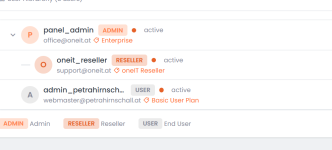
1793204219760.png

An example:
This "User" needs to moved under the reseller. This can not be done right now. I have to delete the user and recreate it as a impersonated reseller.

Greetings
Chris
 
Hi Chris,

Thank you for taking the time to write this up in detail. Moving to a panel that was built from scratch always means re-learning where things live, so questions like these are completely normal and they are useful to us.

Most of what you describe comes from one thing: the user list is open in the wrong view. Everything else below follows from that.

The user list has two views

At the top right of /users there are two buttons, Tree and Table.

  • Tree ("Tree View (Hierarchy)") only shows who belongs to whom: which users sit under which reseller. It is a map of ownership, not a working list — that is why you end up walking down the tree to reach one account.
  • Table is the working view: every account you are allowed to see, in one sortable list, with the row actions on it. It is the default, and the panel remembers whichever you picked in that browser.

Please switch to Table — that alone should remove most of the friction.

Assigning a plan — no impersonation needed

  • A new account: Users → Add User (/users/create). The form has a Plan field.
  • An existing account: open it at /users/edit/<user id> (the Edit action on the table row) → General tab → Plan. As ROOT you see two tabs there, General and Permissions; a reseller sees the form directly.

You never have to sign in as the customer to give them a plan. If that was the only way you found, it was because the tree view does not carry the row actions.

The plans themselves are under Service Plans in the sidebar: /plans to list, /plans/create to add one, /plans/edit/<id> to change one.

Changing a role

The same edit screen has a Role field, so turning a user into a reseller (or back) is one change there — no delete and recreate.

Permissions: two levels

In the sidebar under Permission:

  • Page Permissions (/settings/permissions, ROOT only) — which pages each role may open. This is the default for everyone holding that role.
  • User Permissions (/permissions/users) — pick one account and override those defaults for that account alone. The editor opens on the same page, so you do not leave the list.

A setting made for one user wins over the role default, which is what you want when a single customer needs one page more or one page less than the rest.

Moving a user under another reseller

Here you are right, and I will not dress it up: today the panel cannot change which reseller owns an account. Deleting and recreating really is the only way, and that is not good enough. Thank you for naming it — it is on our list.

A plan that will not save

Also fair. If you still have the case, please paste the exact message you saw and the values you entered (or a screenshot of the form). We want the message to name the field and the reason instead of leaving you to guess, and a real example is the fastest way for us to get that wording right.

Thank you again for testing this thoroughly. If anything above does not match what you see on your install, say so and we will look again.
 
Hi Chris,

Thank you for taking the time to write this up in detail. Moving to a panel that was built from scratch always means re-learning where things live, so questions like these are completely normal and they are useful to us.

Most of what you describe comes from one thing: the user list is open in the wrong view. Everything else below follows from that.

The user list has two views

At the top right of /users there are two buttons, Tree and Table.

  • Tree ("Tree View (Hierarchy)") only shows who belongs to whom: which users sit under which reseller. It is a map of ownership, not a working list — that is why you end up walking down the tree to reach one account.
  • Table is the working view: every account you are allowed to see, in one sortable list, with the row actions on it. It is the default, and the panel remembers whichever you picked in that browser.

Please switch to Table — that alone should remove most of the friction.

Assigning a plan — no impersonation needed

  • A new account: Users → Add User (/users/create). The form has a Plan field.
  • An existing account: open it at /users/edit/<user id> (the Edit action on the table row) → General tab → Plan. As ROOT you see two tabs there, General and Permissions; a reseller sees the form directly.

You never have to sign in as the customer to give them a plan. If that was the only way you found, it was because the tree view does not carry the row actions.

The plans themselves are under Service Plans in the sidebar: /plans to list, /plans/create to add one, /plans/edit/<id> to change one.

Changing a role

The same edit screen has a Role field, so turning a user into a reseller (or back) is one change there — no delete and recreate.

Permissions: two levels

In the sidebar under Permission:

  • Page Permissions (/settings/permissions, ROOT only) — which pages each role may open. This is the default for everyone holding that role.
  • User Permissions (/permissions/users) — pick one account and override those defaults for that account alone. The editor opens on the same page, so you do not leave the list.

A setting made for one user wins over the role default, which is what you want when a single customer needs one page more or one page less than the rest.

Moving a user under another reseller

Here you are right, and I will not dress it up: today the panel cannot change which reseller owns an account. Deleting and recreating really is the only way, and that is not good enough. Thank you for naming it — it is on our list.

A plan that will not save

Also fair. If you still have the case, please paste the exact message you saw and the values you entered (or a screenshot of the form). We want the message to name the field and the reason instead of leaving you to guess, and a real example is the fastest way for us to get that wording right.

Thank you again for testing this thoroughly. If anything above does not match what you see on your install, say so and we will look again.
Thank you for the reply. I will give it a try and come back with feedback.

Greetings
 
Hi Chris,

Thank you — and no hurry at all. Take the time you need with it.

Two things stay open on our side from your list, so you do not have to chase them:

  • Moving a user under another reseller — still not possible today, and on our list as a real gap rather than a "maybe".
  • A plan that will not save — if you hit it again, the exact message plus the values you entered (or a screenshot of the form) is all we need. We want the warning to name the field and the reason instead of leaving you to guess, and one real example gets that wording right faster than anything else.

If anything in the table view or the two permission screens does not behave as described on your install, say so here and we will look again.

Greetings
 
Back
Top