
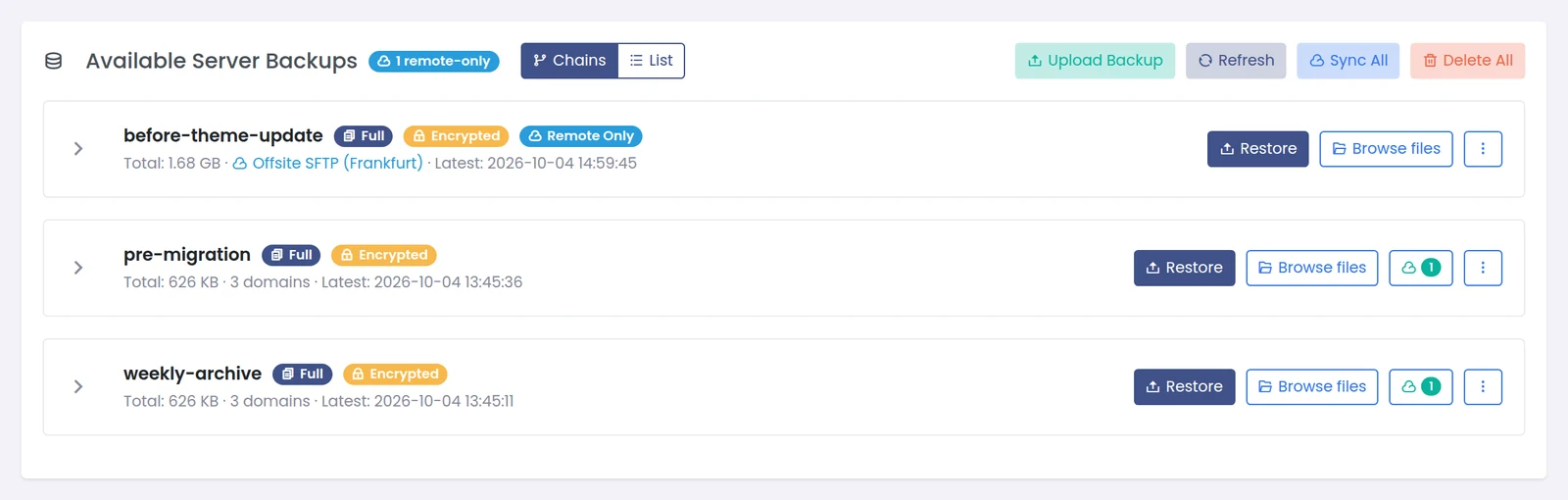
- Remote-only backups on the restore page - Backup > Restore Backup lists backups that exist only on a remote destination, by name, with a Remote Only badge.
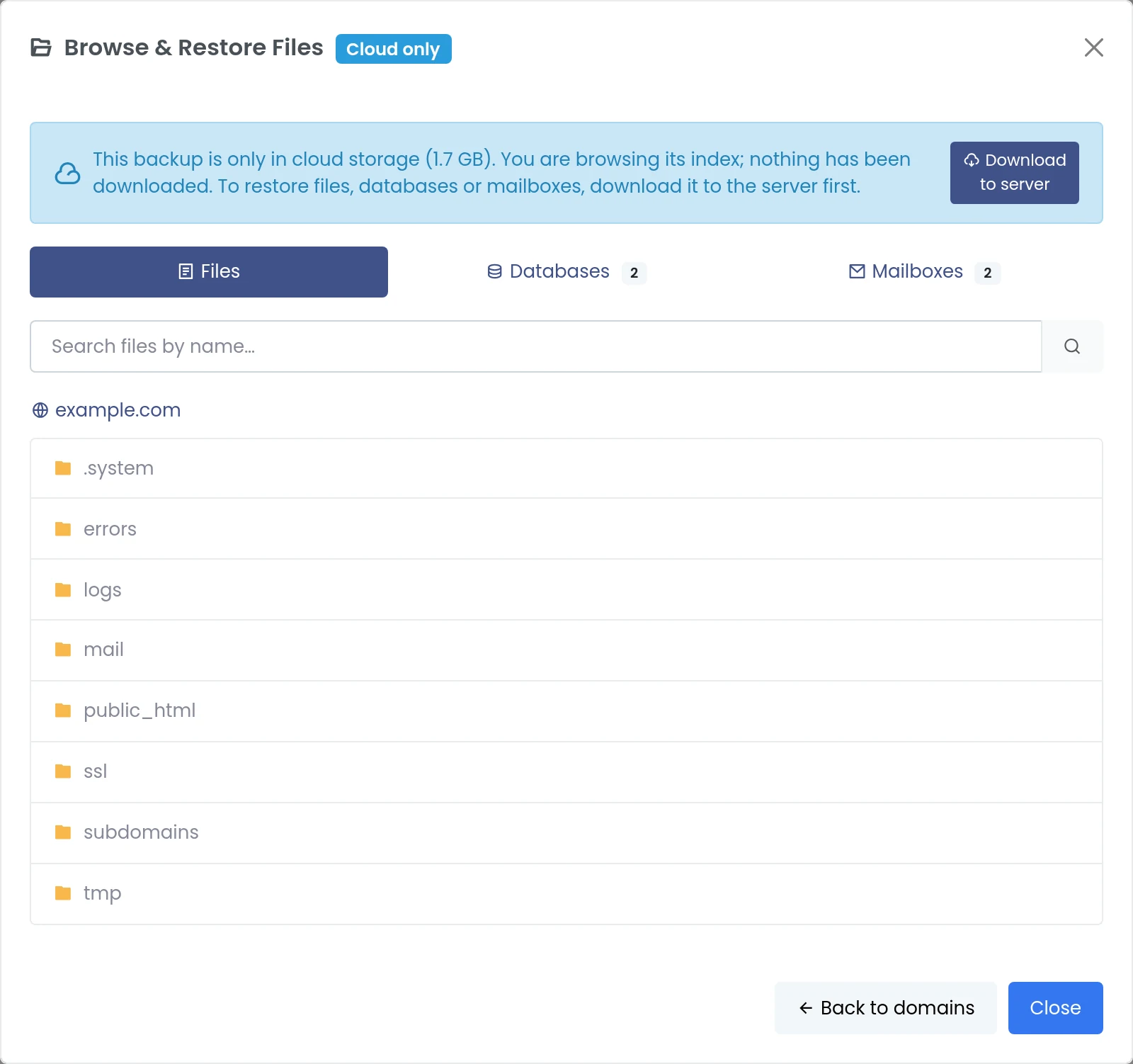
- Browse without downloading - open a cloud backup and look through files, databases and mailboxes; only its small index is fetched.
- Downloads with progress and Cancel - pulling a backup to the server runs as a server job; Cancel deletes the partial file.
- Manual backups to remote storage, with an option to delete the local copy after every upload is verified.
- Separate remote retention per schedule ("Keep on remote storage (days)", 0 = never delete).
Availability: remote destinations for manual backups, local-copy deletion and remote retention: panelica-server 1.0.551. Browse and cancellable downloads: panelica-server 1.0.552 / panel-frontend 4.5.355. Beta channel (Panel Settings > System Updates > Stable + Beta).
Backup > Restore Backup. The header shows how many backups are remote-only; each one shows its destination.
Click Browse files on a remote-only backup. The notice confirms nothing has been downloaded. Pick a domain, open folders, search by file name, or switch to the Databases / Mailboxes tabs.
Press Download to server. You can close the dialog or leave the page; the restore page shows a banner with progress. Cancel asks for confirmation, stops the transfer and deletes what was downloaded so far. Starting the same download twice joins the running job.

When it finishes, the backup is local and Restore / granular restore work as usual.
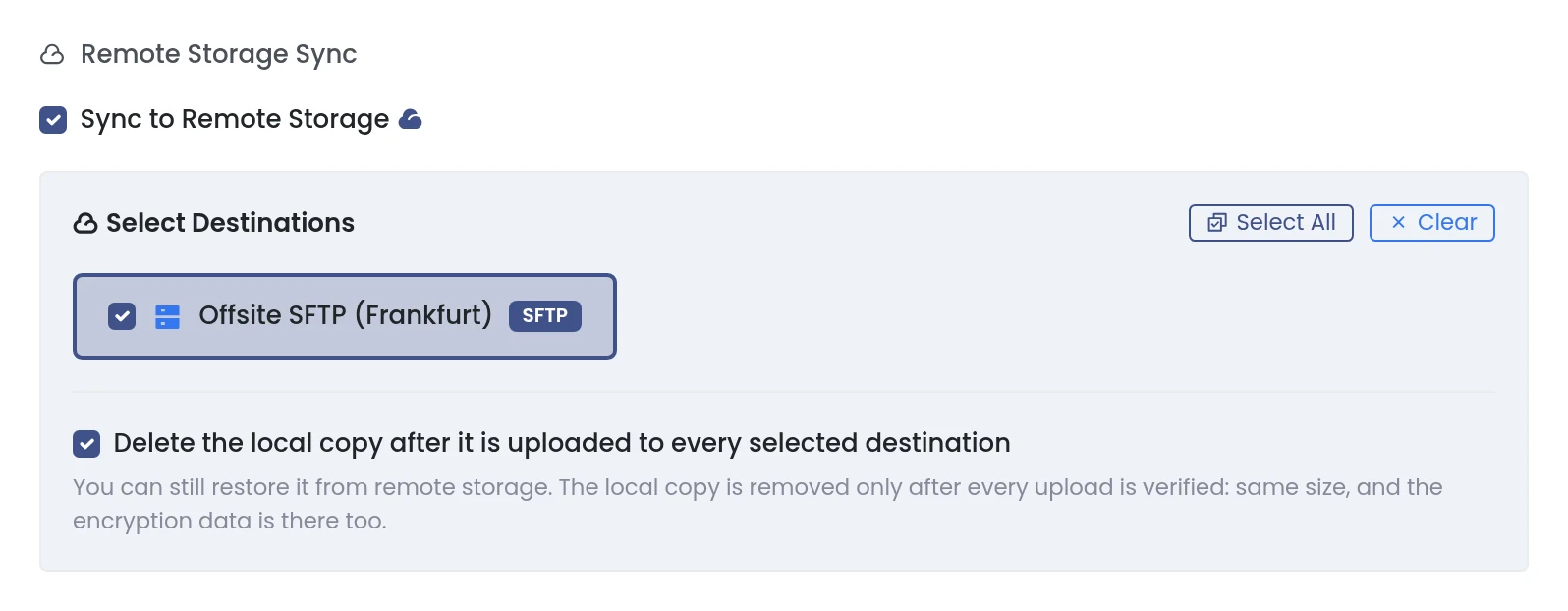
Backup > Create Backup > choose domains and a name > the options dialog > Sync to Remote Storage > select destinations. Optionally tick Delete the local copy after it is uploaded to every selected destination.
- The local file is deleted only after every upload is verified (same size, encryption data present). If one upload fails, the local copy stays.
- Full backups only - an incremental backup needs its previous backup on the server.
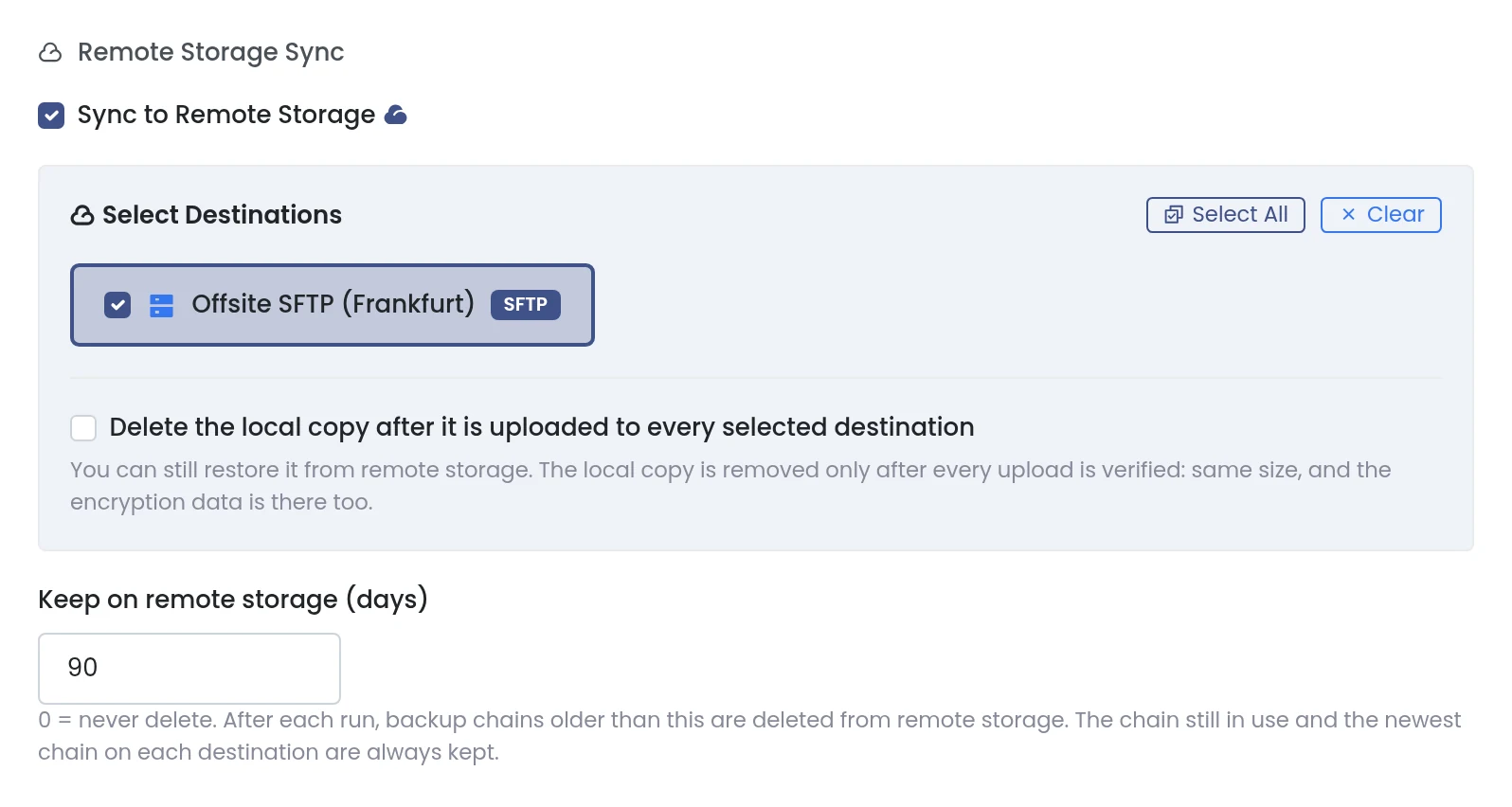
Backup > Schedules > edit a schedule. With remote sync on, set Keep on remote storage (days):
- 0 (default) = remote copies are never deleted.
- Any other value (up to 3650) = after each run, the schedule deletes its chains older than that from remote storage.
- The chain in use and the newest chain on each destination are always kept.
- Encrypt anything that leaves the server. If you use the panel key, export it (Panel Settings > Backup > Backup Encryption Key) and keep it away from the backups.
- Typical setup: short local retention for fast restores, long remote retention for safety, local-copy deletion on servers with small disks.
Full write-up: https://panelica.com/blog/remote-backups-in-panelica-browse-before-you-download-cancel-anytime