
VPS Manager runs full Linux servers (Incus system containers) on the server that already runs Panelica. Each VPS has root access, its own users, services, cron and network, and limits that tools inside it (
Open VPS Manager in the menu and click Install. The page checks the server first: cgroup v2, not running inside a container (KVM VPS and dedicated servers are fine, OpenVZ/LXC are not), kernel, LVM tools, free disk and memory, and whether the package and the image server can be reached. The storage pool is at least 5 GB and the server always keeps at least 5 GB (or 10%) of disk free. If a step fails, the server is put back as it was.
Click Create VPS. The wizard asks for a name, the owner account and the system: Ubuntu 22.04/24.04/26.04, Debian 12/13, AlmaLinux 9/10, Rocky Linux 9/10 or Alpine 3.24. Then resources (CPU, memory, swap, disk, processes, bandwidth), network, security and start-up, and access (generated root password or your own, plus an SSH key).
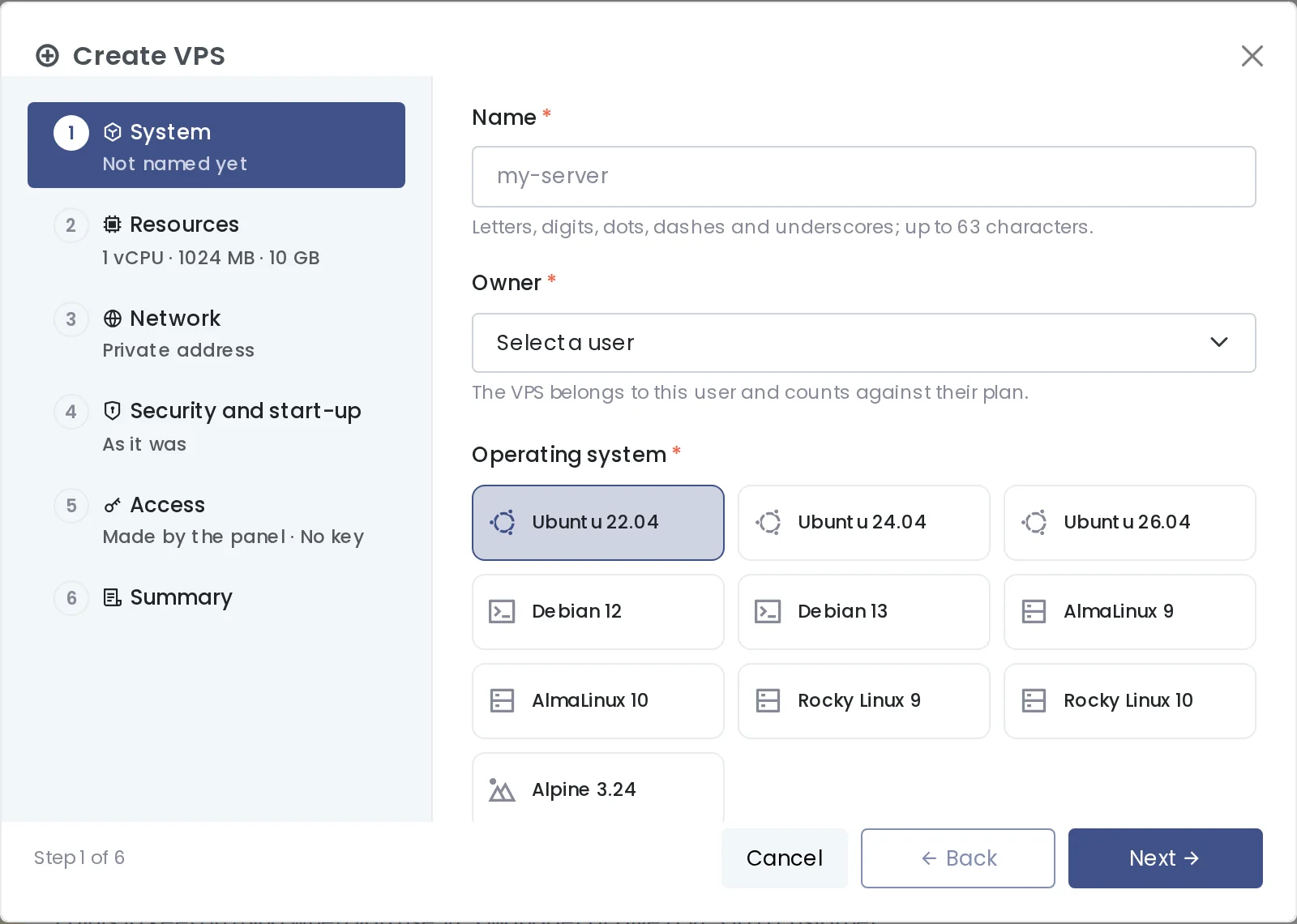
The Create VPS wizard.
A generated root password is shown only once. Keep it, or reset it later from the Overview tab.
The Overview tab shows the exact commands, for example:
No SSH client at hand? The Terminal tab opens a root shell in the browser, and the serial console works even when the VPS's network is broken.
Inside the VPS, the limits are its own:
Run a web server inside the VPS (nginx, Apache, Node.js, anything) on a port, for example 80 or 8080. Then open the VPS's Network tab, or click the Linked domains action on the VPS's row in the list:
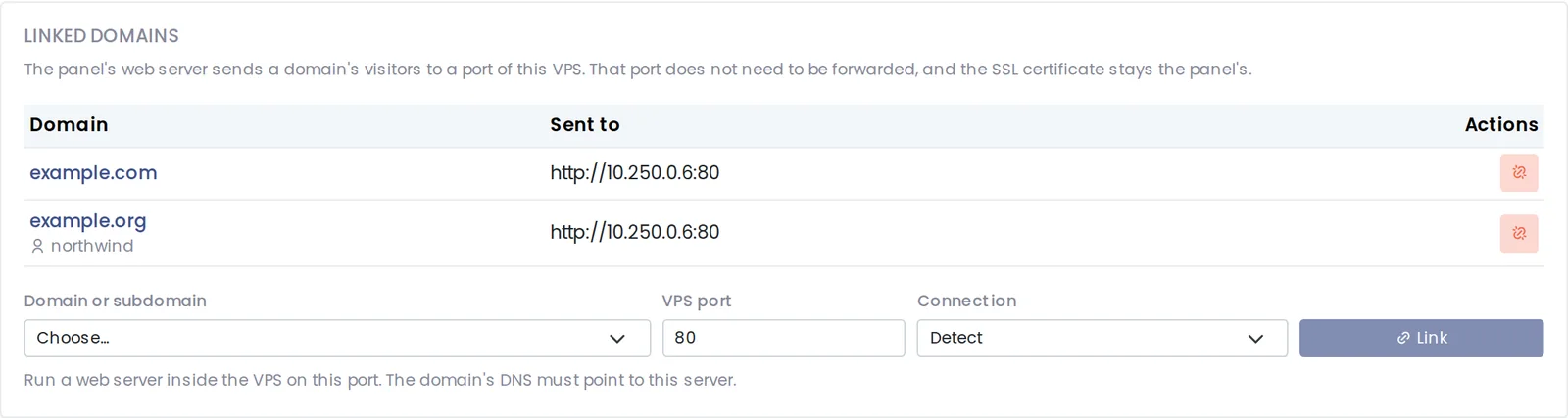
Two domains sent to a VPS; the second belongs to another account.
The panel's web server now sends the site's visitors to the VPS. No port forward is needed, and the SSL certificate stays in the panel. The root administrator can link any domain; admins and resellers the domains of the accounts they manage; users their own. Domains that cannot be linked are listed with the reason (served by Docker or an app, linked to another VPS, suspended, being moved).
To undo it, click unlink next to the domain: the site's own configuration comes back.
For anything that is not a website, add a port forward on the Network tab (one port, or a ready-made set such as Website 80/443). A forward without a server port takes the next free one from the VPS port range (30000-39999 by default). A VPS can also get its own IP address: the root administrator or an admin adds the IP to the panel first, then chooses it on the Network tab.
Behind NAT or a cloud firewall? Open the forwarded ports there too.
Full article on the blog: https://panelica.com/blog/panelica-vps-manager-run-full-linux-servers-next-to-your-websites
free, htop) report as its own. This guide goes from installing VPS Manager to a website served from a VPS.Open VPS Manager in the menu and click Install. The page checks the server first: cgroup v2, not running inside a container (KVM VPS and dedicated servers are fine, OpenVZ/LXC are not), kernel, LVM tools, free disk and memory, and whether the package and the image server can be reached. The storage pool is at least 5 GB and the server always keeps at least 5 GB (or 10%) of disk free. If a step fails, the server is put back as it was.
Click Create VPS. The wizard asks for a name, the owner account and the system: Ubuntu 22.04/24.04/26.04, Debian 12/13, AlmaLinux 9/10, Rocky Linux 9/10 or Alpine 3.24. Then resources (CPU, memory, swap, disk, processes, bandwidth), network, security and start-up, and access (generated root password or your own, plus an SSH key).
The Create VPS wizard.
A generated root password is shown only once. Keep it, or reset it later from the Overview tab.
The Overview tab shows the exact commands, for example:
Code:
ssh -p 30004 [email protected]
sftp -P 30004 [email protected]Inside the VPS, the limits are its own:
Code:
root@web-01:~# nproc
1
root@web-01:~# free -m | head -2
               total        used        free      shared  buff/cache   available
Mem: 1024 37 467 0 518 986Run a web server inside the VPS (nginx, Apache, Node.js, anything) on a port, for example 80 or 8080. Then open the VPS's Network tab, or click the Linked domains action on the VPS's row in the list:
- Choose the domain or subdomain.
- Enter the port inside the VPS.
- Leave Connection on Detect, or choose HTTP or HTTPS.
- Click Link.
Two domains sent to a VPS; the second belongs to another account.
The panel's web server now sends the site's visitors to the VPS. No port forward is needed, and the SSL certificate stays in the panel. The root administrator can link any domain; admins and resellers the domains of the accounts they manage; users their own. Domains that cannot be linked are listed with the reason (served by Docker or an app, linked to another VPS, suspended, being moved).
To undo it, click unlink next to the domain: the site's own configuration comes back.
For anything that is not a website, add a port forward on the Network tab (one port, or a ready-made set such as Website 80/443). A forward without a server port takes the next free one from the VPS port range (30000-39999 by default). A VPS can also get its own IP address: the root administrator or an admin adds the IP to the panel first, then chooses it on the Network tab.
Behind NAT or a cloud firewall? Open the forwarded ports there too.
- Outgoing mail (port 25) is off by default; Docker inside a VPS and the private network between an owner's VPSs are switches on the Security tab, subject to the plan.
- Resources can be changed while the VPS runs; the disk can only grow.
- A VPS shares the server's kernel: no Windows, no custom kernel modules.
- VPS contents are not in the panel's backups yet, and Reinstall/Delete erase the VPS. Keep your own copies of important data.
- Deleting a VPS returns its linked domains to their own configuration first.
Full article on the blog: https://panelica.com/blog/panelica-vps-manager-run-full-linux-servers-next-to-your-websites