Git Deploy — Repository Management and CI/CD
Panelica includes a built-in Git manager that connects to GitHub, GitLab, or any Git remote. You can clone repositories, browse code, view commit history, and deploy directly from the panel.
Accessing Git Deploy
From the sidebar, click Git Deploy under the Applications section.
The interface is organized into tabs:
Adding a Repository
Go to the Repositories tab and click Create Repository.
Click Create to clone the repository to your server.
Repository Detail View
Click any repository to open its detail view with these tabs:
Deploying Code
To deploy the current branch to your server:
The deployment log shows real-time output. If something goes wrong, you can roll back to any previous deployment from the Deployments tab.
Auto-Deploy
Each repository has an Auto-deploy toggle. When enabled, Panelica automatically deploys new commits pushed to the tracked branch. Combined with webhooks, this creates a fully automated deployment pipeline.
Notes
Panelica includes a built-in Git manager that connects to GitHub, GitLab, or any Git remote. You can clone repositories, browse code, view commit history, and deploy directly from the panel.
Accessing Git Deploy
From the sidebar, click Git Deploy under the Applications section.
The interface is organized into tabs:
- Overview — Dashboard showing repository stats, recent deployments, and pipeline status.
- Repositories — List of all connected repositories.
- Deployments — History of all deployments across repositories.
- Pipelines — CI/CD pipeline configurations.
- Settings — System-level Git configuration.
Adding a Repository
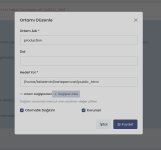
Go to the Repositories tab and click Create Repository.
- Repository Name — A name for this repository in Panelica.
- Remote URL — The Git remote URL (e.g.,
https://github.com/user/repo.git). - Branch — The branch to track (e.g.,
mainorproduction).
Click Create to clone the repository to your server.
Repository Detail View
Click any repository to open its detail view with these tabs:
- Overview — Repository stats, current branch, last commit.
- Branches — View, create, delete, and switch branches.
- Commits — Full commit history with author, date, and message. Click any commit to see the diff with syntax-highlighted code changes.
- Files — Browse the repository file tree. Click any file to view its contents with syntax highlighting.
- Deployments — Deployment history with logs and rollback options.
- Environments — Manage deployment environments (e.g., staging, production).
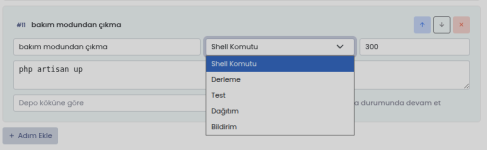
- Pipelines — Configure CI/CD steps for automated deployment.
- Deploy Keys — Manage SSH keys for authenticated access to private repositories.
- Webhooks — Set up webhooks so GitHub or GitLab triggers automatic deployments on push.
Deploying Code
To deploy the current branch to your server:
- Open the repository detail view.
- Click the Deploy button.
- Select the target environment.
- Confirm the deployment.
The deployment log shows real-time output. If something goes wrong, you can roll back to any previous deployment from the Deployments tab.
Auto-Deploy
Each repository has an Auto-deploy toggle. When enabled, Panelica automatically deploys new commits pushed to the tracked branch. Combined with webhooks, this creates a fully automated deployment pipeline.
Notes
- The built-in code viewer supports syntax highlighting for JavaScript, PHP, Python, SQL, HTML, CSS, and more.
- Deploy keys are managed per repository — each repository can have its own SSH key for secure access.
- Rollback is instant — Panelica keeps previous deployment states for quick recovery.